

How to import forms
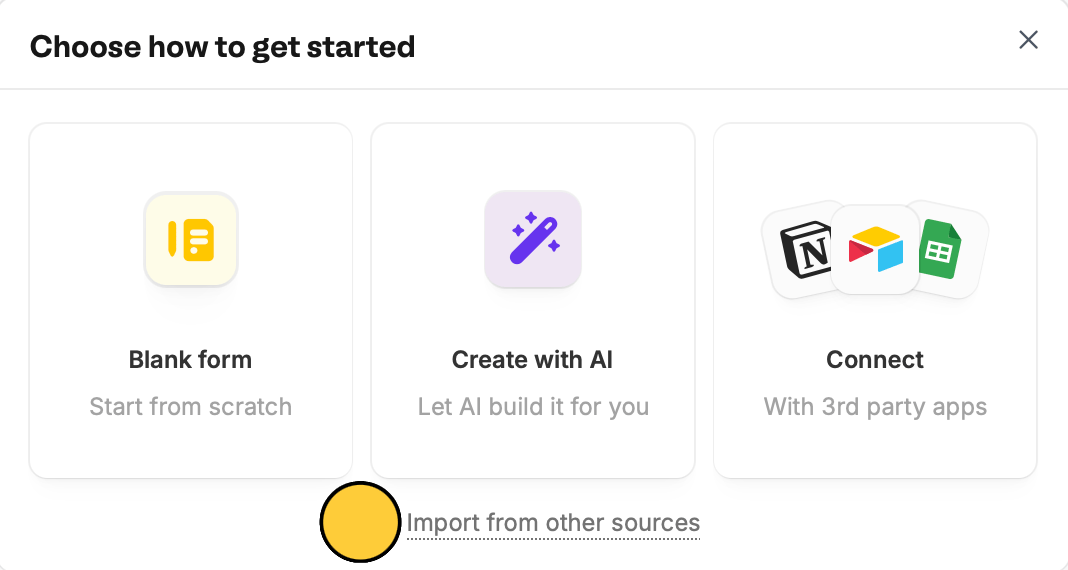
From the Fillavo dashboard,+ Create a Form. Choose to import from other sources.
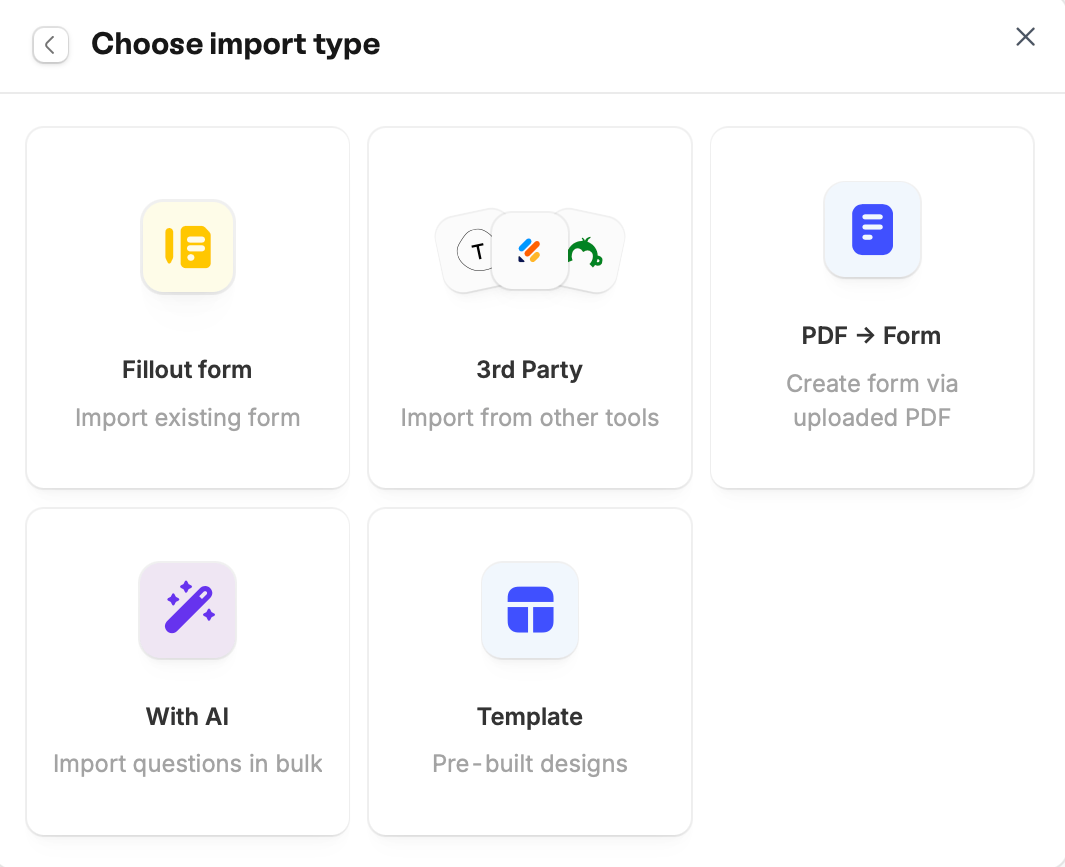
Import Fillavo form
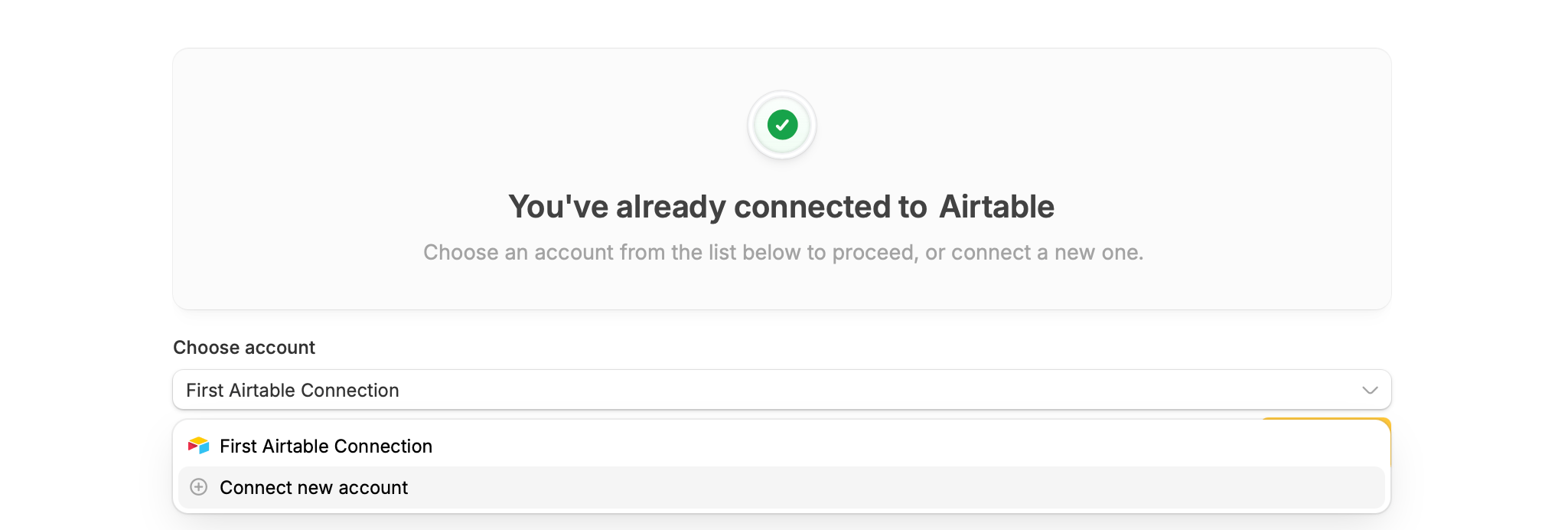
Choose this option if you have an exported Fillavo form that you want to import into your account. This is useful when you need to reuse a form created in a different organization. The imported form will include the form structure, such as questions and fields, but submissions from the original form will not be included. Update connections (if necessary) If you’re importing a form that has a connection to Airtable, Notion or another integration, be sure to reconnect them after importing. In theIntegrate tab on top, + Connect new account.
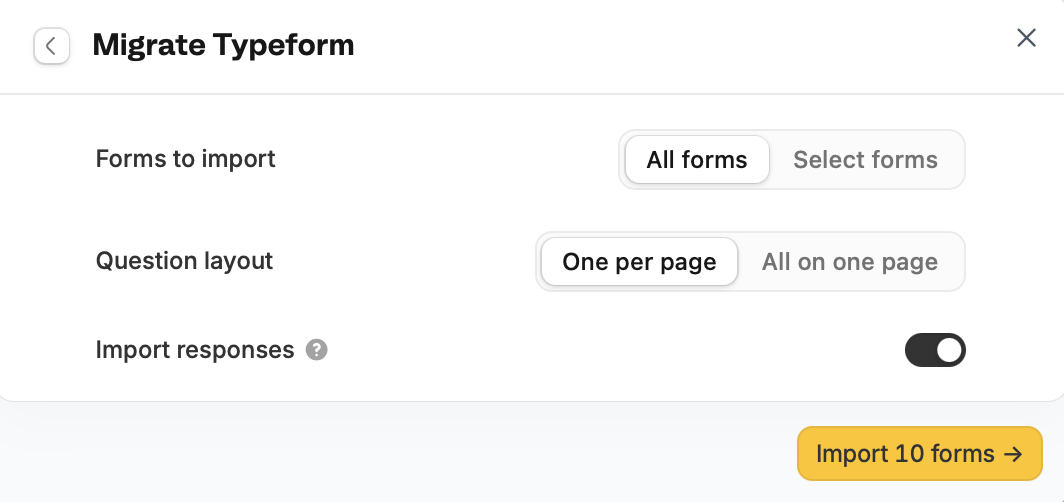
Migrate forms from Typeform, Jotform, SurveyMonkey, or Google Forms
Fillavo lets users import existing forms from these 3rd party tools. The editor will read the forms as is and import the structure as is, including labels, multiple-choice options, workflows and email notification settings including recipients. Other items, like backend settings, aren’t included. After connecting the tool, choose to importAll forms or Select forms only.
Convert your PDF into a form
You can simply upload a PDF, and Fillavo will automatically convert it into an editable form.Use AI
and Fillavo will automatically convert it into an editable form.Start with a template
You can use pre-built designs as a starting point for your new form.Export a form
You can share your form as a template for your team or others to use. From the Fillavo dashboard hover over the form to be exported and click theellipsis icon followed by Export form.
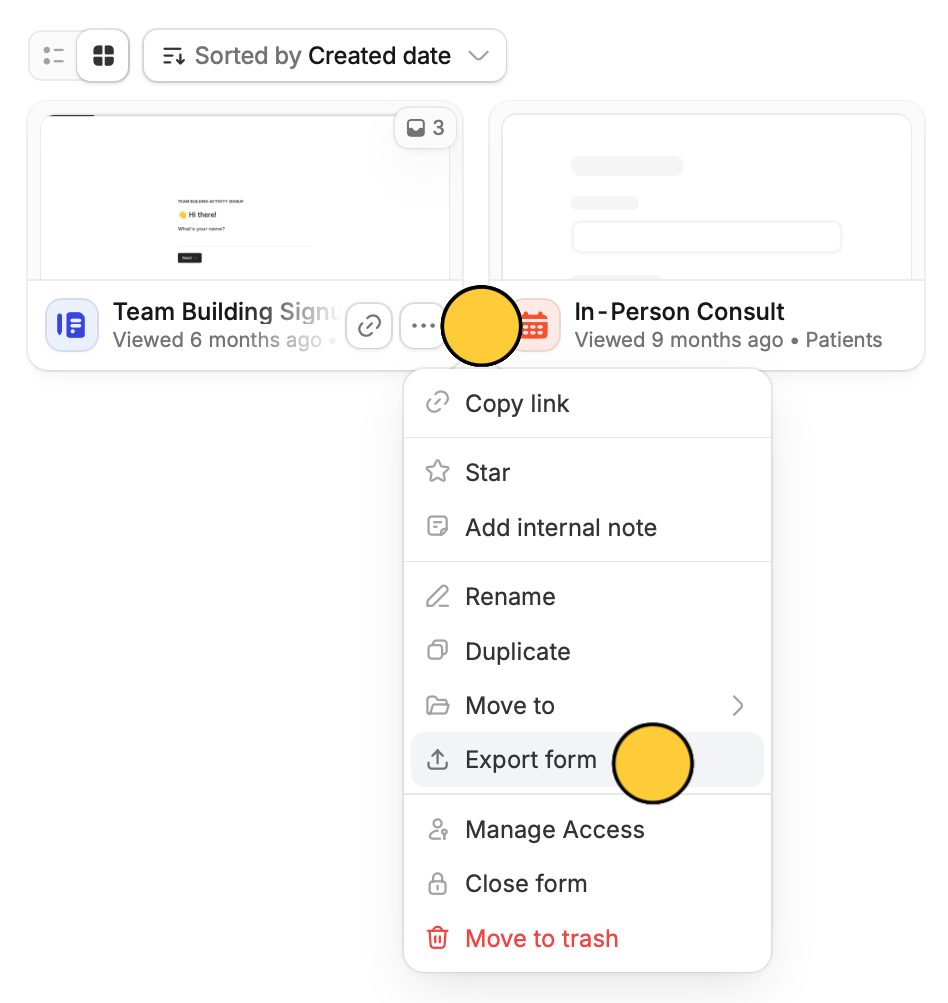
Exporting forms does not include submissions and comments received.