> ## Documentation Index
> Fetch the complete documentation index at: https://fillout.com/help/llms.txt
> Use this file to discover all available pages before exploring further.
# SAML Single Sign On
> Enable Single Sign-On (SSO) through various providers like Okta, Azure AD, and all SAML providers in Fillout to streamline user authentication and access management.
## Pre-requisites
* Organization should be on **Fillout**'s [Enterprise Plan](https://www.fillout.com/enterprise)
* Your account must have an **Admin** role in your team
SAML is available on Fillout's [Enterprise Plan](https://www.fillout.com/enterprise).
## Set up SSO
After signing up or upgrading your plan, you will be sent setup instructions via WorkOS.
## How to Log in Using SSO
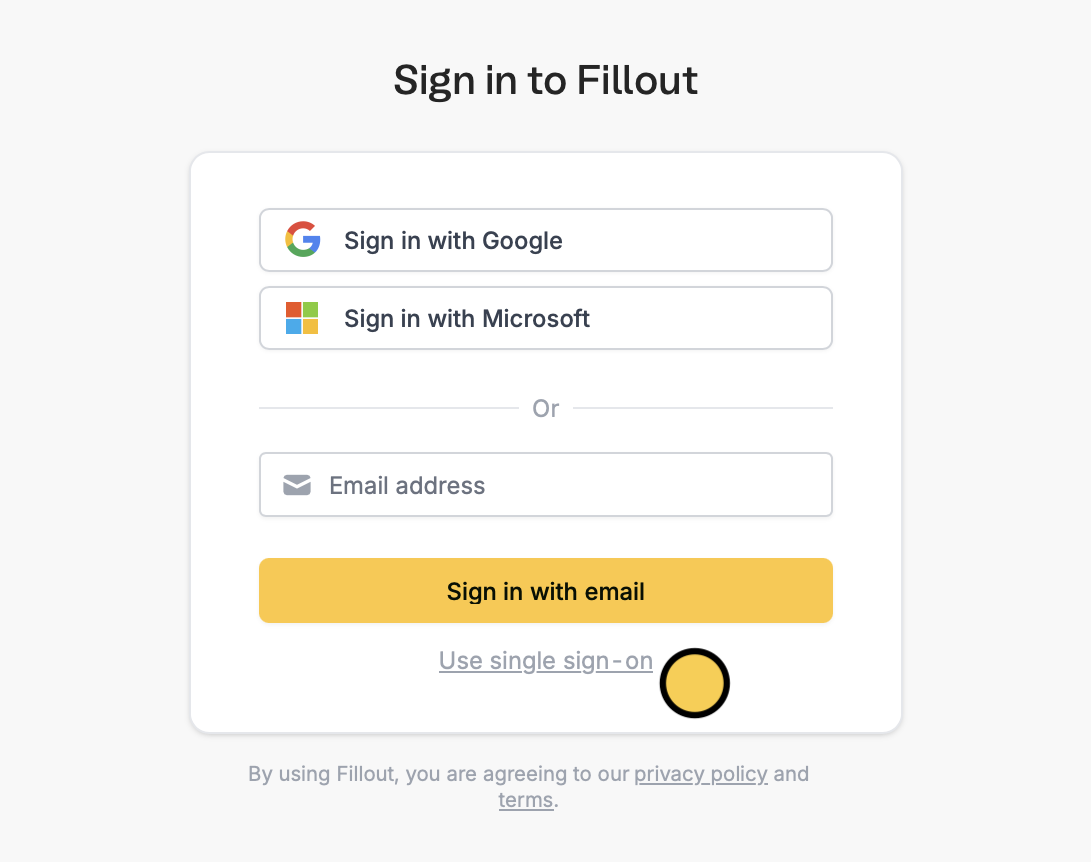
Once SSO is configured, your team members can log in by clicking on `Login with SSO` on the Fillout login page and entering their company email.
 ## How provisioning users works
Fillout does not currently auto-provision users when they are added to your SSO provider. Instead, an account in Fillout will be created when the user logs into Fillout for the first time, using the SSO login.
### Require an invitation to join
If you also use your SSO provider for a [form login page](/help/sso-form-login), everyone you grant access to in your provider can create a Fillout account by signing in to the Fillout dashboard. Admins can turn that off, so that only the people you invite become members of your organization.
Click your `Account name` in the upper left corner, then `Settings`, then `Security`. In the **Single sign-on** section, expand **Advanced**.
A confirmation dialog explains what changes.
Click `Require invitation`. The change applies to your organization right away.
While the setting is on:
* Signing in with SSO no longer creates a Fillout account. Someone without an account who tries to sign in to the Fillout dashboard is asked to contact their organization admin.
* **Access to your forms and apps is unchanged.** Respondents sign in with SSO exactly as before, including [pre-filled fields](/help/sso-form-login) and [custom attributes](/help/sso-custom-attributes).
* **Existing members are unaffected**, and continue to sign in with SSO.
* **Invitations still work.** Invite someone as usual and they can accept and sign in with SSO.
Turning the setting on or off is recorded in your [audit logs](/help/audit-logs) as a critical `org.ssoRequireInvite` event.
Anyone who became a member before you turned this on keeps their account. You can [remove them](/help/manage-members) if they should not have one.
**Enforcing SSO**
Contact [support@fillout.com](mailto:support@fillout.com) if you would like to enforce SSO for all users on your account.
By default, users added to your account before enabling SSO will still be able to authenticate with their prior authentication method (e.g., password or Google login). At your request, we can enforce SSO for all users going forward, including existing users. Existing users will still retain all their prior details once they log in with SSO.
SAML SSO can only be enforced for a team if your current session was authenticated via SAML SSO. This ensures your configuration works correctly before restricting team access, preventing accidental loss of access.
**SSO on forms**
Fillout also supports adding SSO to your forms and pre-filling fields with employee information. [Learn more here.](/help/sso-form-login)
## How provisioning users works
Fillout does not currently auto-provision users when they are added to your SSO provider. Instead, an account in Fillout will be created when the user logs into Fillout for the first time, using the SSO login.
### Require an invitation to join
If you also use your SSO provider for a [form login page](/help/sso-form-login), everyone you grant access to in your provider can create a Fillout account by signing in to the Fillout dashboard. Admins can turn that off, so that only the people you invite become members of your organization.
Click your `Account name` in the upper left corner, then `Settings`, then `Security`. In the **Single sign-on** section, expand **Advanced**.
A confirmation dialog explains what changes.
Click `Require invitation`. The change applies to your organization right away.
While the setting is on:
* Signing in with SSO no longer creates a Fillout account. Someone without an account who tries to sign in to the Fillout dashboard is asked to contact their organization admin.
* **Access to your forms and apps is unchanged.** Respondents sign in with SSO exactly as before, including [pre-filled fields](/help/sso-form-login) and [custom attributes](/help/sso-custom-attributes).
* **Existing members are unaffected**, and continue to sign in with SSO.
* **Invitations still work.** Invite someone as usual and they can accept and sign in with SSO.
Turning the setting on or off is recorded in your [audit logs](/help/audit-logs) as a critical `org.ssoRequireInvite` event.
Anyone who became a member before you turned this on keeps their account. You can [remove them](/help/manage-members) if they should not have one.
**Enforcing SSO**
Contact [support@fillout.com](mailto:support@fillout.com) if you would like to enforce SSO for all users on your account.
By default, users added to your account before enabling SSO will still be able to authenticate with their prior authentication method (e.g., password or Google login). At your request, we can enforce SSO for all users going forward, including existing users. Existing users will still retain all their prior details once they log in with SSO.
SAML SSO can only be enforced for a team if your current session was authenticated via SAML SSO. This ensures your configuration works correctly before restricting team access, preventing accidental loss of access.
**SSO on forms**
Fillout also supports adding SSO to your forms and pre-filling fields with employee information. [Learn more here.](/help/sso-form-login)